
Commerce7 WordPress Dashboard: this month's numbers, on the screen you already open.
The Commerce7 WordPress Dashboard is an admin widget that pulls your Commerce7 order count and revenue for the current month, plus a channel-by-channel order graph. You see where the month stands the moment you log in to update a page — no second login, no report to run.

The Commerce7 WordPress Dashboard widget
One box on the WordPress dashboard, titled with your winery's name and the current month. Sales for the headline numbers, Channels for where they came from.
Your month, without leaving WordPress.
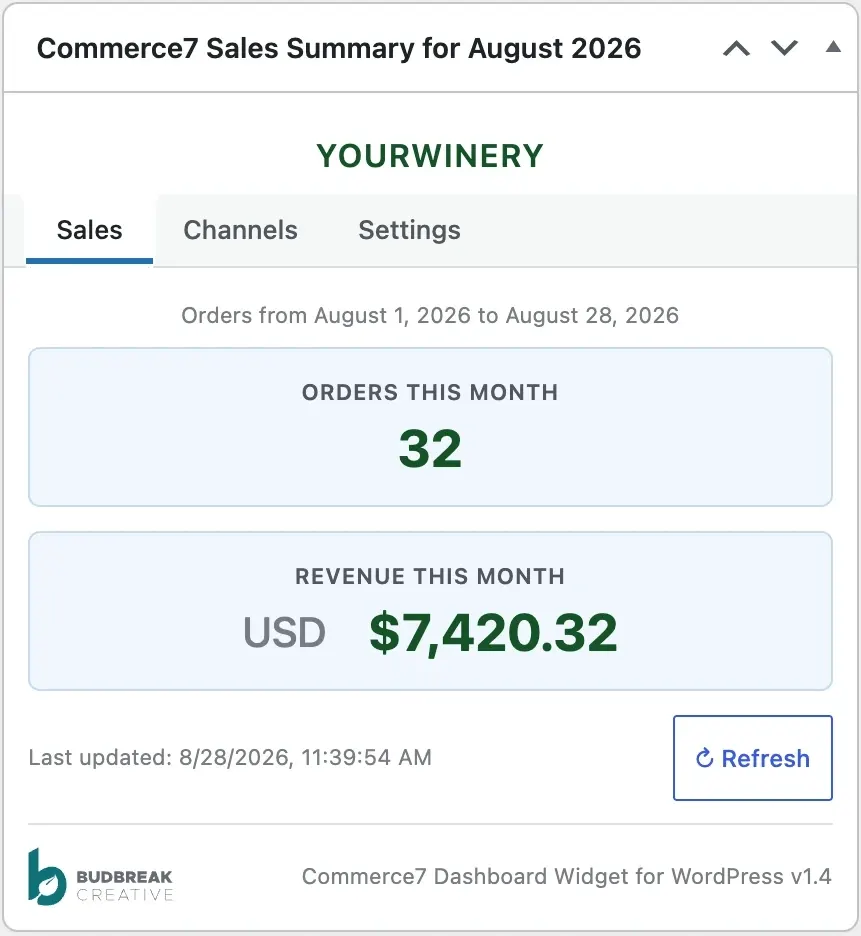
Orders and revenue, month to date
Total order count and total revenue from the first of the month through today, stated plainly in two stat boxes. The widget title names the winery and the month it's reporting on.
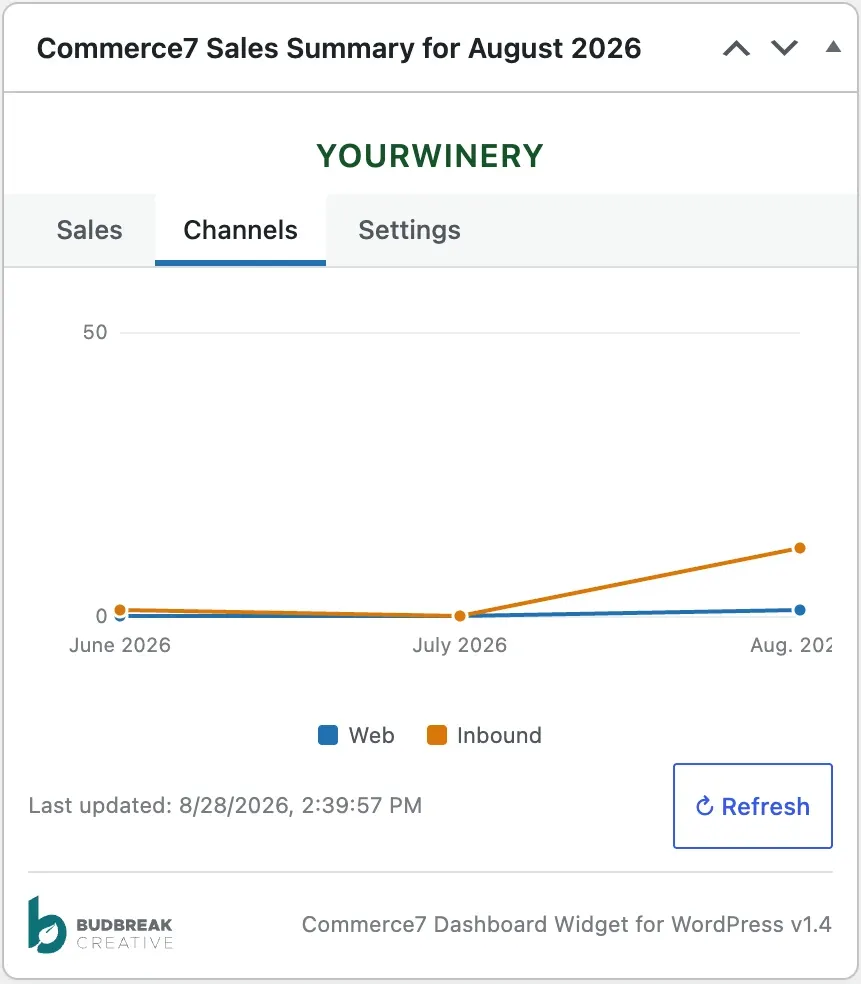
Orders by channel, graphed
A Channels tab charts order counts for Web, POS, Club, and Inbound across the past three or six months, so you can see which channel is moving rather than only the total.
Cached, not hammered
Results are cached for thirty minutes rather than calling Commerce7 on every admin page load, so the dashboard stays fast. A Refresh button pulls fresh figures whenever you want them.
Your winery's branding
The widget shows your Commerce7 shop name at the top, and can pull in your shop logo instead when you enable it. No logo set in Commerce7? It falls back to the name.
Nothing but the widget
Credentials live on a Settings tab inside the widget itself. There is no extra admin page, no new menu item, and uninstalling clears every option and cached value it created.
Updates from us
The plugin checks BudBreak's own plugin server for new versions, so updates arrive in your WordPress updates screen like any other plugin.
Three tabs, one small box.
Everything the plugin does lives inside one dashboard widget. No new menus, no separate screens to learn.
Sales
Order count and revenue for the month so far, with animated loading dots while the figures come in.
Channels
A line graph of orders by channel — Web, POS, Club, Inbound — over three or six months, each colour-keyed to its legend.
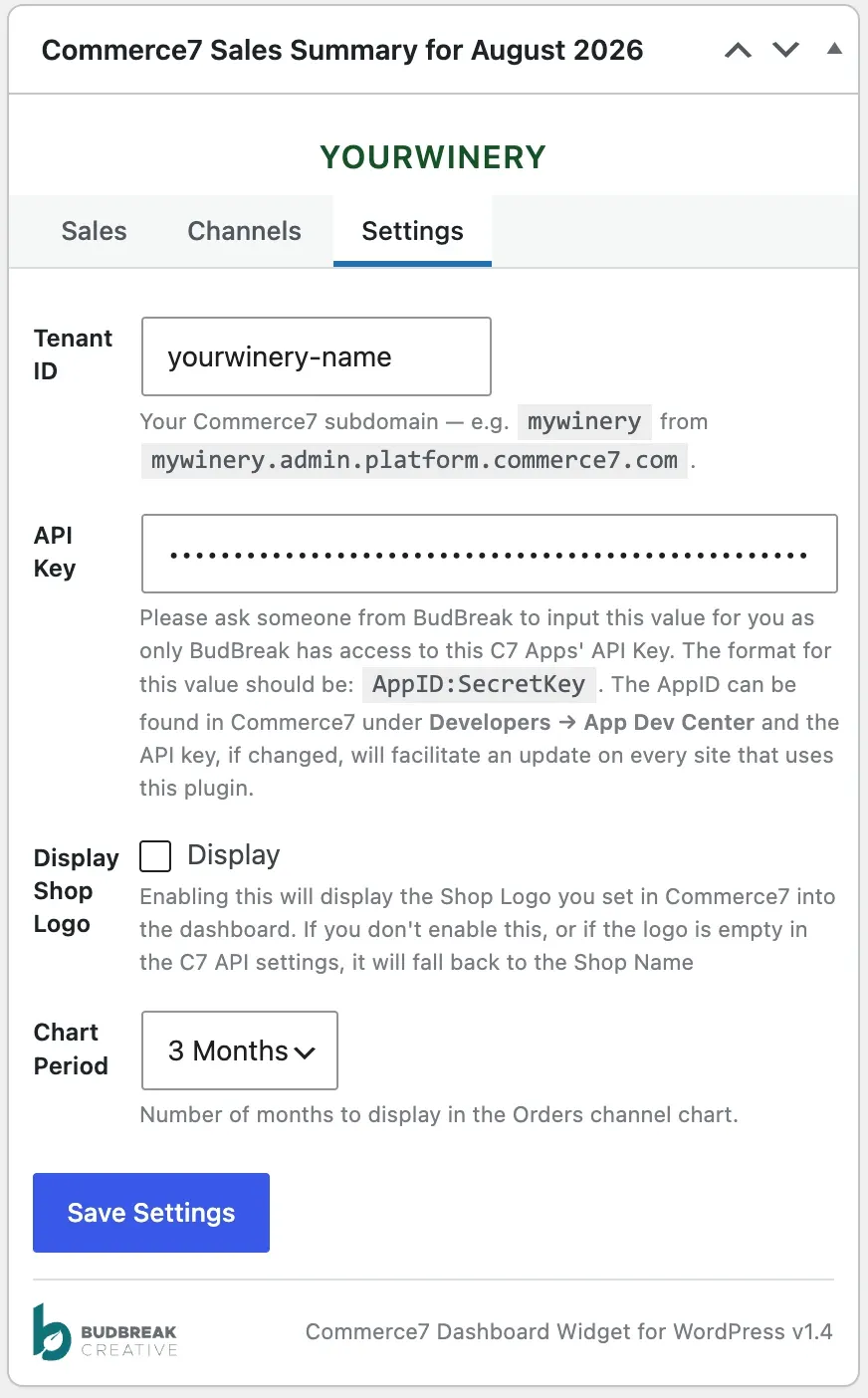
Settings
Tenant ID, API key, chart period, and the shop logo toggle — saved without leaving the dashboard.
Two credentials, and we enter them for you.
The widget needs your Commerce7 Tenant ID and an API key. We install the plugin and enter both as part of your BudBreak account.
Read-only by nature: the plugin fetches order data and displays it. It doesn't write anything back to Commerce7.
Tenant ID
Your Commerce7 subdomain — the mywinery in mywinery.admin.platform.commerce7.com.
API key
An AppID:SecretKey pair belonging to BudBreak's Commerce7 app. Only we hold it, so we enter it on your site — and update it everywhere if it changes.
Clean uninstall
Removing the plugin deletes every setting and cached value it stored. Nothing is left behind in your database.
Configured in place
The Commerce7 WordPress Dashboard's Settings tab sits inside the widget itself — no extra admin page, no new menu item. Every field carries its own explanation, including where in Commerce7 to find the value.
The API key is ours to manage. It belongs to BudBreak's Commerce7 app, so we enter it for you and update it everywhere if it ever changes.
Technical Specifications
- WordPress
- 6.0 or newer
- Tested to
- WordPress 7.1
- Account needed
- Commerce7 with API access
- Where it lives
- WordPress dashboard widget
- Data refresh
- 30-minute cache, manual refresh
- Chart period
- 3 or 6 months, 4 channels
BudBreak Client Exclusive
We install it, connect it to your Commerce7 account, and keep it current.